Products
LAN File Sharing Pro
This application allows to share files in a Local Area Network (Wireless or Wired network).
A screenshot of the application is shown below:
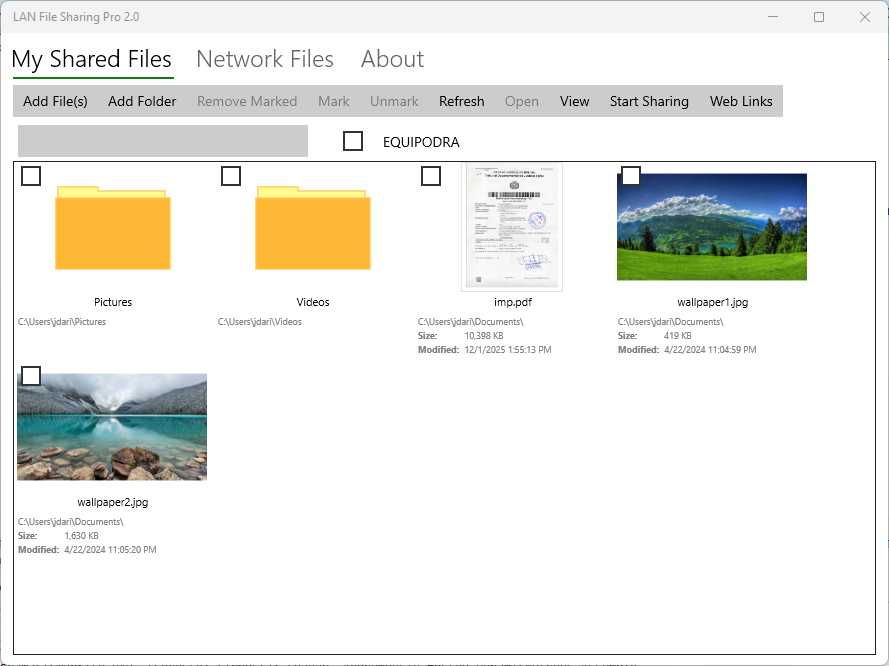
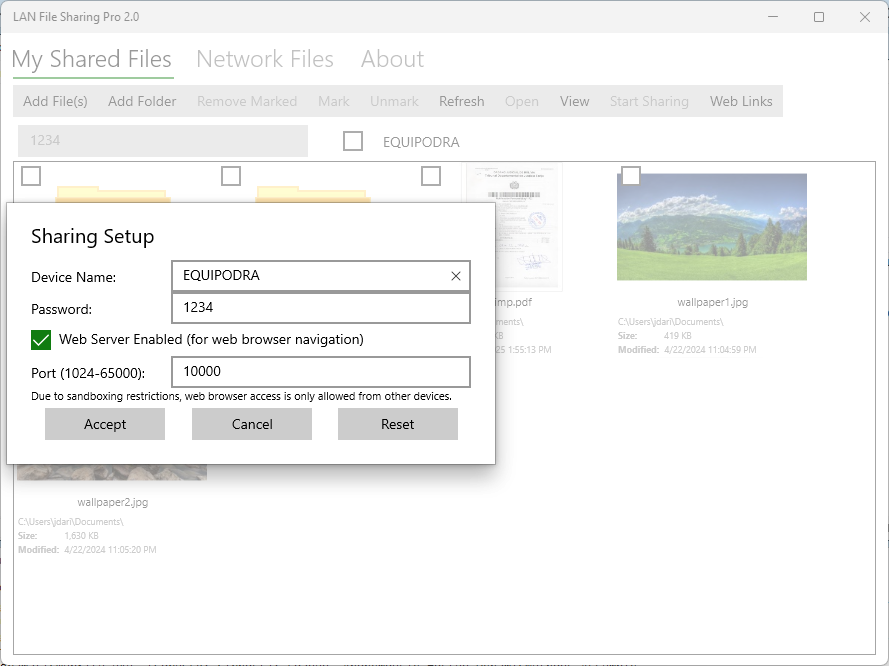
You can start the sharing process with the "Start Sharing" button. A dialog box appears where you should enter the sharing password. The dialog box that appears is the following:
You can stop the sharing process with the "Stop Sharing" button.
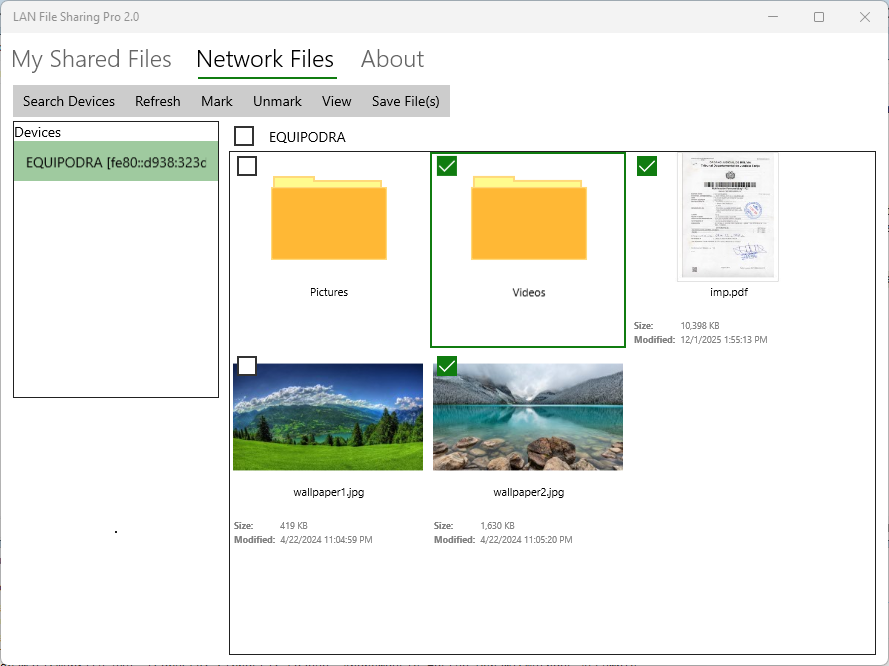
Clicking in the Network Files tab, you can list the servers in the network that share files. You tipically do this in the client computers. To do this, click in this tab the "Search Devices" tab and provide the sharing password provided in the server. You may see something like the following screenshot after you select a server:
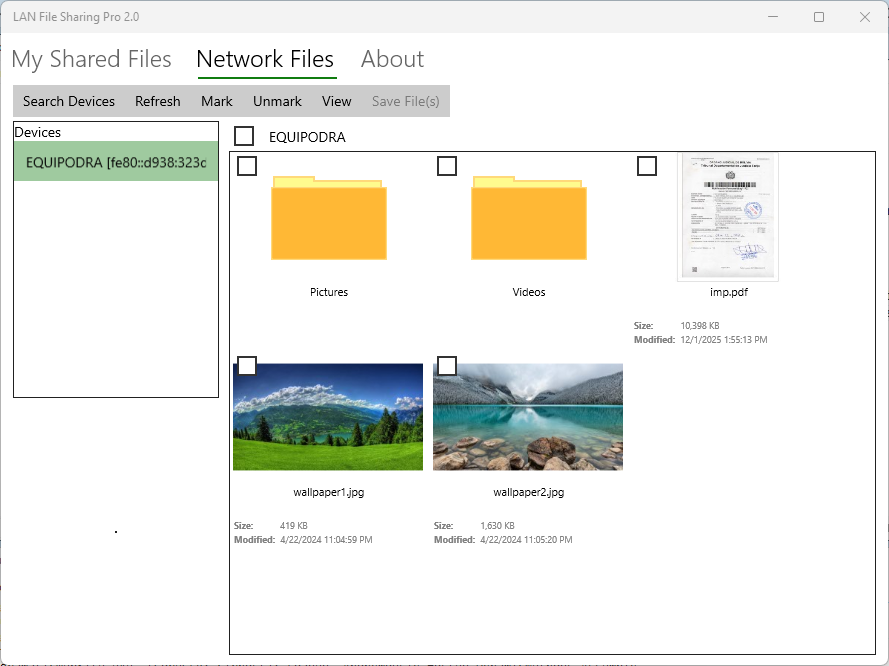
After you select the files and/or folders, you click the "Save Files" button to save the files in the client computer.
Tree List Manager
The first time you enter the app, you should click the "+" button. A New List Page appears requesting the creation of a list. You should enter a List Name.
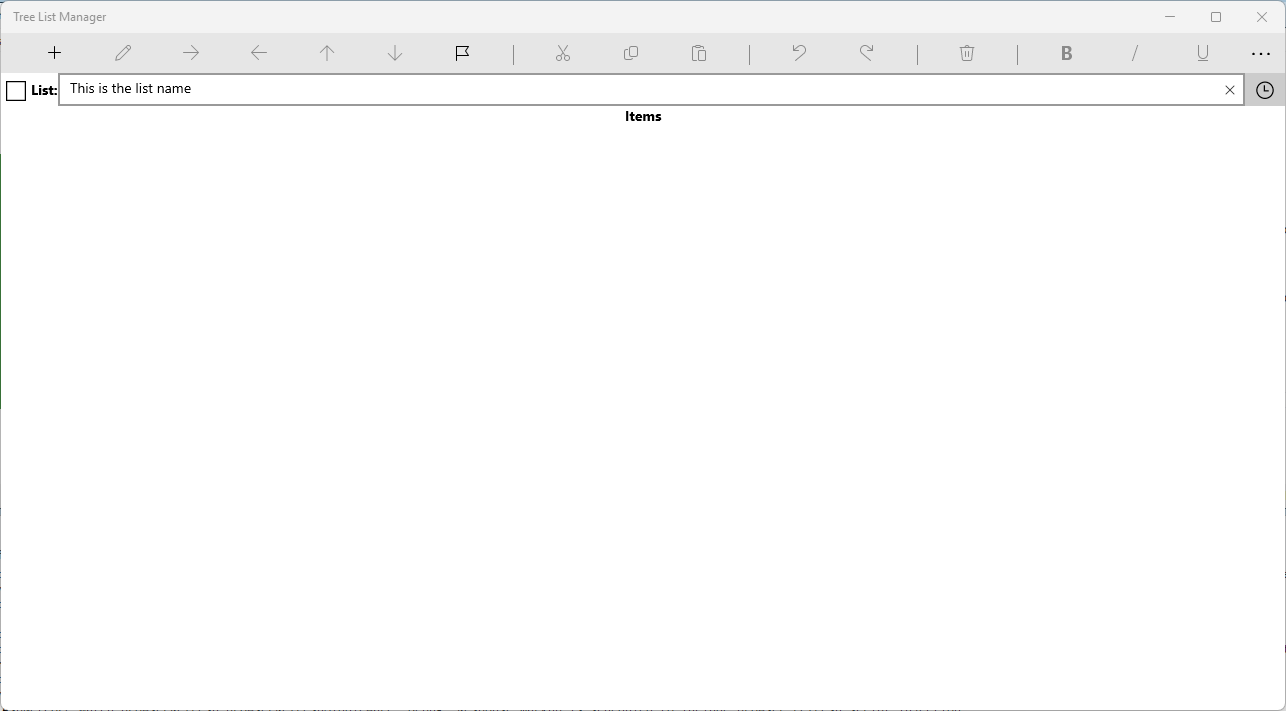
Also you can enter the list items, and style them with the provided buttons:
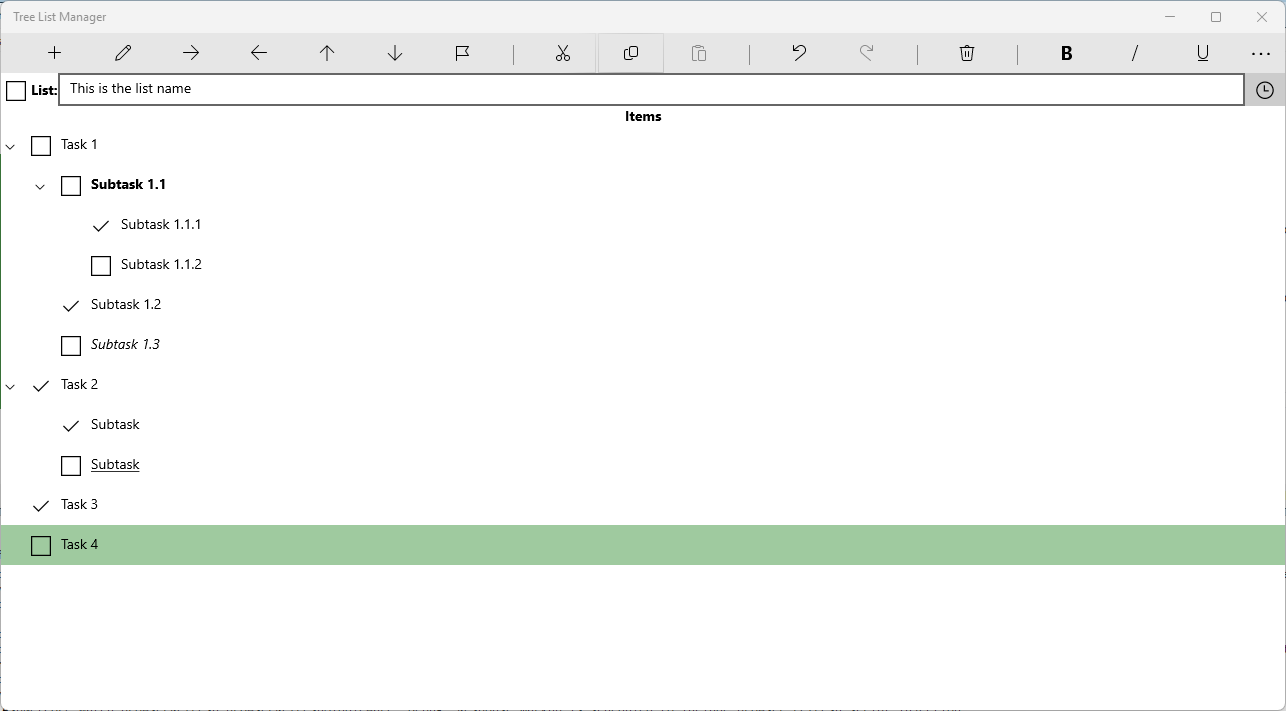
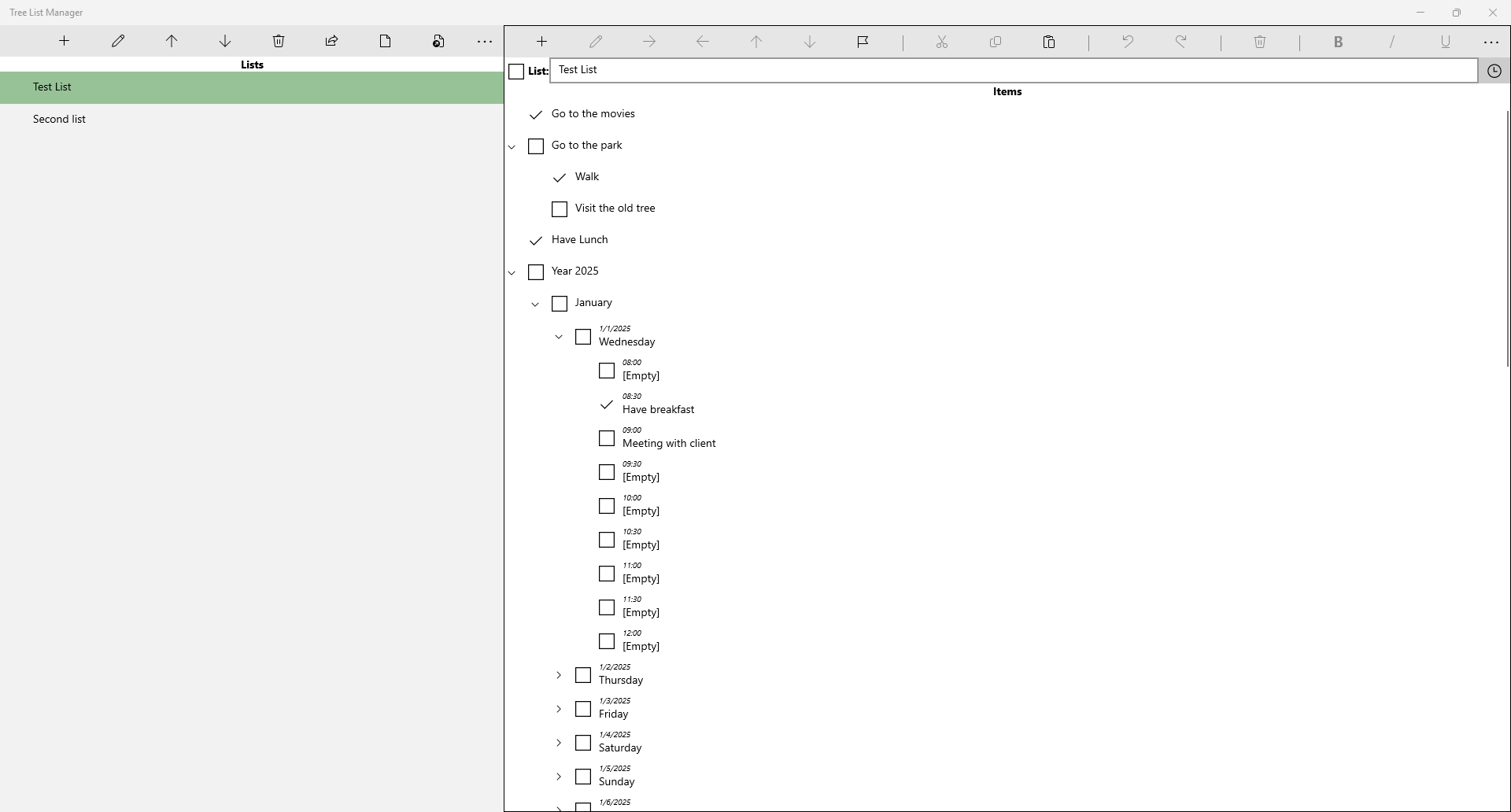
The "Save&Return" button allows to save the list and return to the previous Page. After you save the list, the main page is shown:
HTTP Zip Browser
This application allows to browse ZIP files as web sites. A screenshot of the application is shown below:
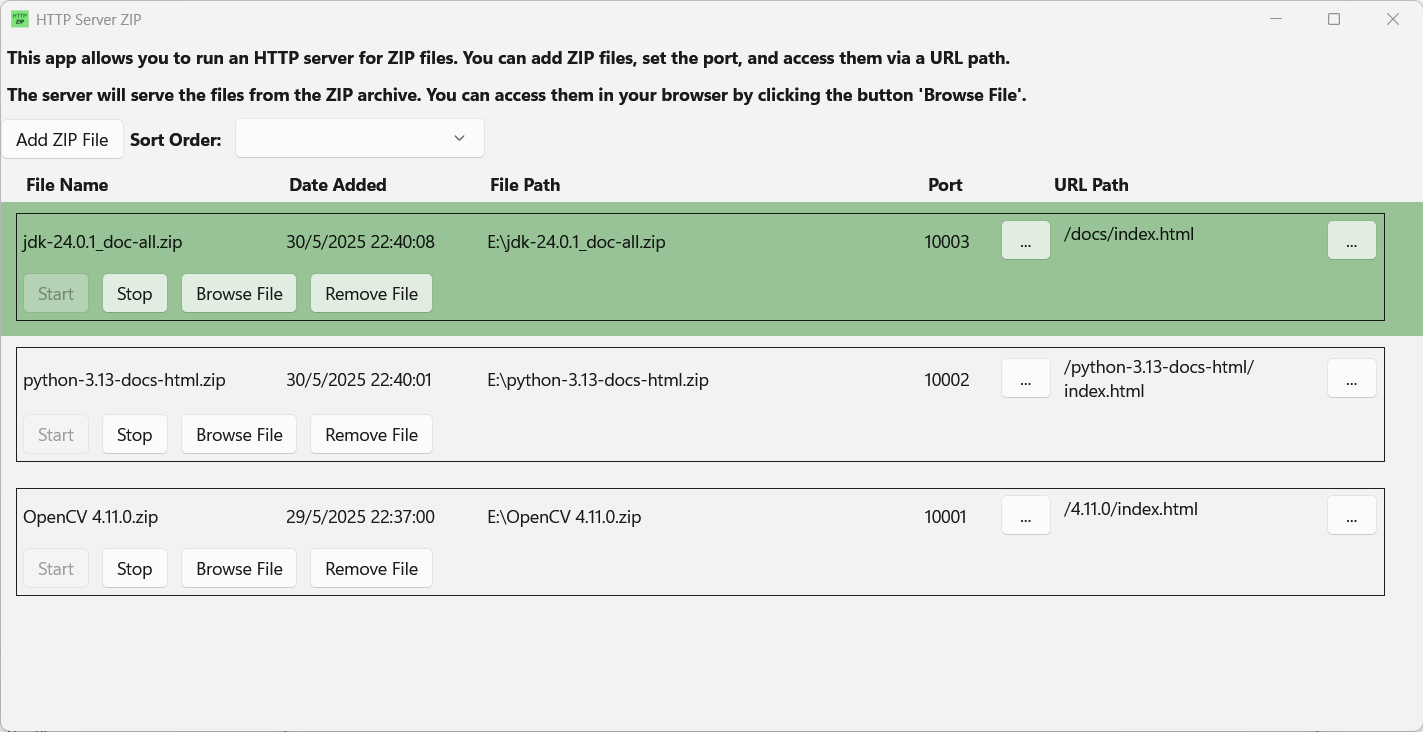
The path of the first index.html file found is used for browsing the file as a web site. If it is not found, the root of the file is used. In this case, a list of the files in the root is shown allowing to navigate to other folders in the ZIP file. In this case, you can download the files by clicking in them.
You can manually specify the starting URL. Also you can specify the port where the Server Listens in the local machine (by default it is a random number)
Rubik Cube 3D
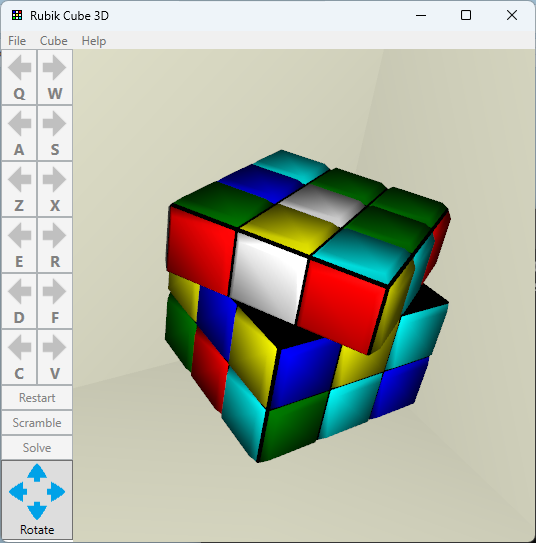
This application is a rubik cube game. A screenshot of the game is shown below:
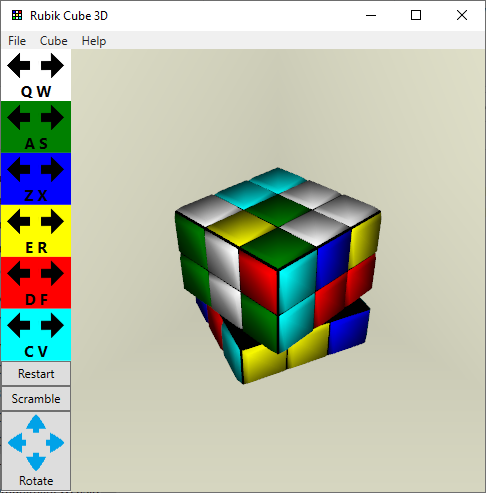
You can play the game by using the keyboard to rotate the cube and its sides, or by using the mouse.
For rotating the sides with the mouse, you should click inside the middle of a square in the borders of the cube and drag the square to one of the adjacents squares.
For rotating the cube with the mouse, you should right click the background and drag the background to the desired direction.
You can also rotate the cube by clicking on the button with four arrows located in the bottom-right side of the application.
The buttons show keyboard shortcuts (letters below the arrows). These shortcuts should be used to rotate the sides of the cube.
An image when the cube is scrambling is shown below: